> For the complete documentation index, see [llms.txt](https://docs.flopsar.com/llms.txt). Markdown versions of documentation pages are available by appending `.md` to page URLs; this page is available as [Markdown](https://docs.flopsar.com/5.2/user-guide/agents/managing-extensions.md).
# Managing Extensions
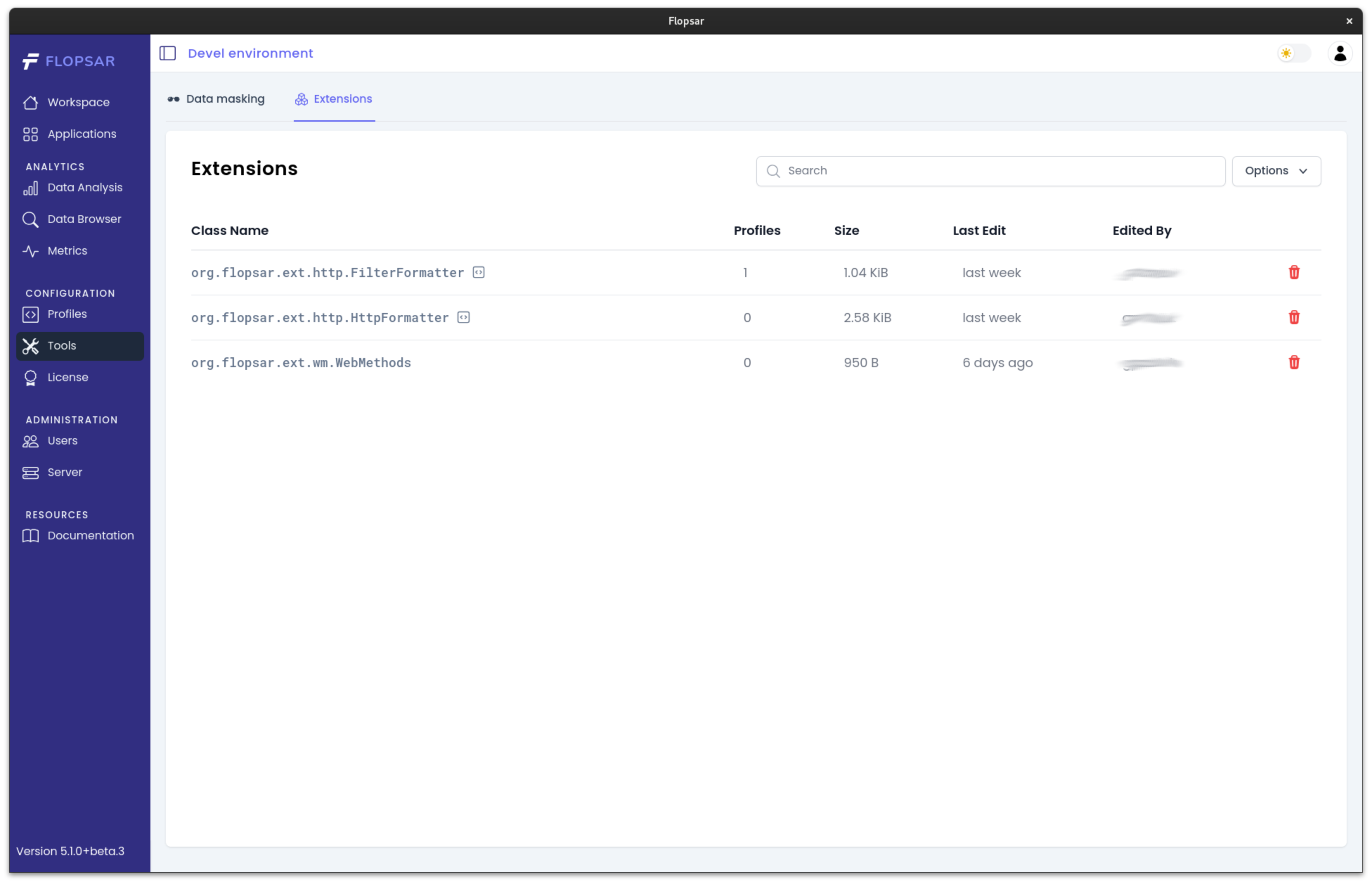
The [agent extensions](/5.2/developer-guide/agent-extensions.md) are managed and stored in the server. You can access the management view by clicking the `Tools` link in the side bar.
Sample extensions
The `Extensions` tab presents a list of all available extensions, stored in the server. If an extension has an icon next to its class name, it means there is a source code of this extension, which you can see by clicking this icon.
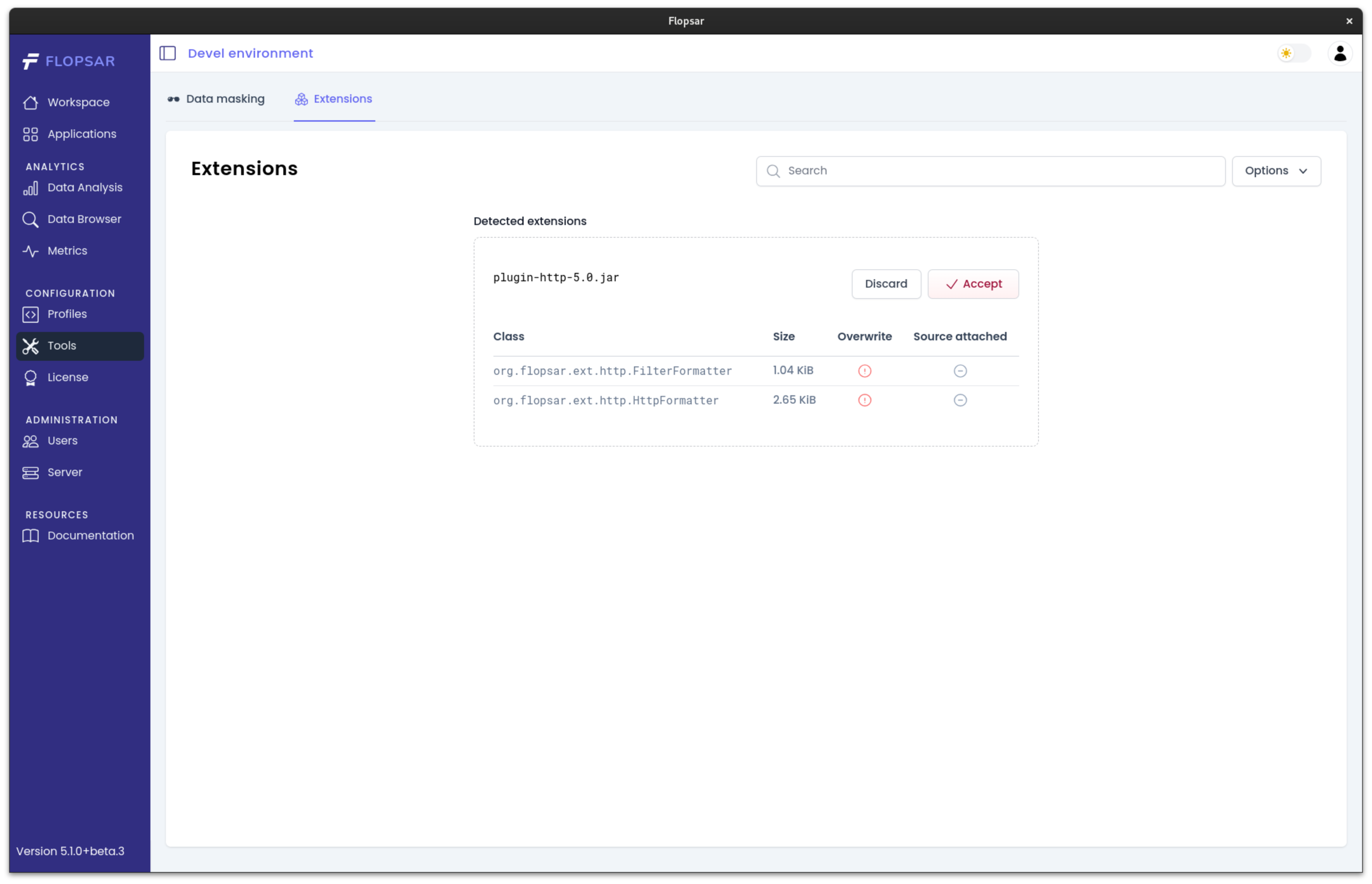
In order to add new extensions click the `New extension` item in the `Options` menu. Then, select the jar file with the extension classes. If the jar file contains valid extensions, you should get a view with detected extensions.
Sample new extensions
You can verify that the extensions you upload are the ones you wanted before you send them to the server. When a new extension class is already present in the server registry, you will see a red icon in the `Overwrite` column. If the extension has its source code attached, you will see a green icon in the `Source attached` column. If everything is fine, just press the `Accept` button to upload the extensions.
{% hint style="info" %}
There are sample extensions ([http](https://github.com/flopsar/plugin-http) and [jdbc](https://github.com/flopsar/plugin-jdbc) plugins) available publicly, which can be found at our [GitHub](https://github.com/flopsar) repos.
{% endhint %}